Step 1: Extract SDK framework from the distribution
Step 2: Integrate Bright SDK in your code
Step 2.0.1: Embedding framework in Xcode project
Step 2.0.2: How to update SDK in Xcode project
Step 2.1: Integration in Unity editor
Step 2.1.1. Add SDK dialog in your unity code
Step 2.1.2. How to import SDK in Unity project
Step 2.1.3. How to update SDK in Unity project
Step 2.1.4. Generate Xcode project
Step 2.1.5: Run the app on a device
Step 2.2: Integration in Xcode (Unity)
Step 2.2.1: Embed Bright SDK framework
Step 2.2.2: Embed SDK dialog in your code
Step 2.3: Integration in Xcode (iOS)
Step 2.3.1: Initialization with Swift
Step 2.3.2: Initialization with Objective-C
Step 2.4: Integration in Xcode (tvOS)
Step 2.4.1: Embed Bright SDK framework
Step 2.4.2: Embed SDK dialog in your code
Step 2.5: Consent dialog customization
Step 2.5.1: Setup background images in Unity
Step 2.5.2: Setup actions images in Unity
Step 2.5.3: Setup background images in native SDK
Step 2.5.4: Setup actions images in native SDK
Step 2.5.5: Setup consent's icon
Flows of showing consent screen
Step 3: Updating your Terms of Service
Step 3.1: AppStore privacy settings
Step 3.2: Update your FAQ and ToS (terms of service)
Step 4: Submit your app to review
Experimental: custom consent screen
Overview
This guide is for developers who want to monetize iOS/tvOS applications with Bright SDK.
If you did not do so already, create an account and you will be able to access your dashboard. You don’t need an API key for the SDK; your app will be identified by the Bundle ID (Apple’s App ID).
Once you've released your app with the Bright SDK, you will start seeing revenue in our Control Panel in 24 hours.
Implementation is simple - there are 5 steps:
- Download the SDK framework
- Integrate the SDK to your app
- Update your terms of service and privacy settings
- Submit your app for review by Bright Data
- Release to the App Store
| ⚠️Bright Data must review your application before you submit it to the Apple’s AppStore. Send your test build to Bright Data via TestFlight for review. |
Important notes
- Take care when implementing the consent screen and the opt-out mechanisms in a way which follows guidelines in this document.
- Users must ALWAYS decide if they want to VOLUNTARILY opt-in after seeing the consent screen, and they must ALWAYS have an easy way to opt out.
- Bright Data recommends offering some value to the user in exchange for opting-in. For example, seeing fewer ads (e.g. remove banners from a game), as an alternative to seeing a reward ad (e.g. for getting a hint in a game) etc. However, you may also simply ask for the user’s support of your app.
- DO NOT suggest BrightSDK as an alternative to paying for premium items or subscription via the AppStore. This is in violation of AppStore’s policy.
- Bright SDK does not do any user tracking of any kind. Because of that, it is not related in any way to Apple’s “ATT” (tracking authorization). You may show the consent screen irrespective of ATT user selection.
- Bright Data reviews BrightSDK implementation after initial release and regularly thereafter. Your account will be terminated if you violate the guidelines in this document.
- Starting from Version 1.385.451, Bright SDK checks if parental controls are set on the iOS device. If parental controls are enabled, the Bright SDK consent screen will NOT be displayed. This is by design, in order to ensure informed consent. Contact your Bright SDK team if you have any additional questions.
Step 1: Extract SDK framework from the distribution
Download the latest Bright SDK from the Bright Data Control Panel or by clicking the link provided in the latest release email.
Once you unzip the SDK, you will find:
- brdsdk.xcframework (universal framework for Xcode project)
- unity_sample_app_2020.2.5 (related to Step 2.1: Integration in Unity editor)
- unity_plugin (related to Step 2.1: Integration in Unity editor)
- unity_xcode_sample_app (related to Step 2.2: Integration in Xcode)
- sample_tvos_xcode (related to Step 2.4: Integration in Xcode (tvOS))
- xcode_swiftui_sample_app (related to Step 2.3.1: Initialization with Swift)
- xcode_uikit_sample_app (related to Step 2.3.1: Initialization with Swift and Step 2.3.2: Initialization with Objective-C)
Step 1.1: SDK overview
- brdsdk.xcframework is a universal Bright SDK library containing iPhoneOS & Simulator builds (minimal iOS supported version is iOS 13.0; minimal tvOS supported version is 15.0)
- unity_sample_app_2020.2.5 demonstrates integration for Unity-based game apps at Unity level (before you generated Xcode project).
- unity_plugin contains brdsdk.unitypackage that can be used in your Unity app to integrate the SDK (referred as “unity plugin” later).
-
unity_xcode_sample_app demonstrates integration for Unity-based game apps at Xcode level (after you generated Xcode project).
NOTE: This sample project is missing UnityFramework.framework, which contains all your gaming resources. You can build and copy it from your project. - xcode_swiftui_sample_app demonstrates integration of SDK to a native project using SwiftUI.
- xcode_uikit_sample_app demonstrates integration of SDK to a native project using UIKit either on Swift or Objective-C.
Step 2: Integrate Bright SDK in your code
| ⚠️ Important! Your application’s Apple Bundle ID has to be registered in your Bright SDK account. Go to https://brightdata.com/sdk/cp/apps and click 'Add App' and follow the instructions. The AppID for iOS/tvOS apps will be constructed as follows “ios_<your Apple Bundle ID>”. For example, if you have Bundle ID “com.mycompany.MyGame”. The AppID you will receive after completing the form will be “ios_com.mycompany.MyGame”. |
Now you are ready to implement the SDK in your code. AppID registration in the Bright SDK account is required to release your app. SDK integration can be done in parallel to the registration process.
Here are case of places where you can integrate sdk into your project:
- In Xcode (see Step 2.0.1: Embedding framework in Xcode project)
- In Unity editor
In case you have a unity project we recommend you to use brdsdk.unitypackage. For more details navigate to Step 2.1: Integration in Unity editor.
Step 2.0.1: Embedding framework in Xcode project
When you use an Xcode project (for a game or a regular app), steps of adding dependencies are common for all project types.
In few words, you just need to add the framework into a needed target:
- Copy brdsdk.xcframework to your app’s project folder (e.g. <MyProject>/Libraries)
- Open your project in XCode
- Select target where the framework must be used
- Click on Project Navigator (left-side pane)
- Select the project on top
- Select app’s target under Targets list
- Embed brdsdk.xcframework
- Select General tab
- Scroll down to Frameworks, Libraries, and Embedded Content
- Click on ”+” button
- Click on Add Other…
- Click on Add Files
- Locate brdsdk.xcframework from the first step and click Open
- Make sure it says Embed & Sign next to brdsdk.xcframework
Step 2.0.2: How to update SDK in Xcode project
In case you need to update the framework in an Xcode project, you need to
- replace brdsdk.xcframework in its location, that is used in the project (e.g. <MyProject>/Libraries)
- clean build folder via Xcode menu in the opened project
In case the cleaning did not help, you may empty DerivedData (by default its path is `~/Library/Developer/Xcode/DerivedData`), but usually doing clean in Xcode is enough.
Step 2.1: Integration in Unity editor
This section will guide you on how to integrate SDK at Unity level (no code changes in Xcode).
Related samples: `unity_sample_app_2020.2.5`, `unity_admob_sample_app`.
If you prefer to integrate at Xcode level, then follow Step 2.2: Integration in Xcode instead.
If you have other 3rd party frameworks integrated into your Unity app that need to be used before your game is launched, you may consider to integrate Bright SDK using our Unity plugin to keep the proper user flow, e.g. Bright SDK will show a consent screen first, then the 3rd party framework will do its job, then your game will start.
We will consider the case when your app has ads integrated and as an alternative you will ask the user to use Bright SDK and have no ads in the app.
Step 2.1.1. Add SDK dialog in your unity code
Open your Unity app in Unity Editor. We recommend using Unity Editor 2020.2.5f1. You can use newer or slightly older versions of Unity but the setup steps might be slightly different (not covered by this guide). If you will have problems setting up your project, then consider trying `unity_sample_app_2020.2.5` sample project - it has BrightData SDK already integrated; you can compare your code with this example and jump to “Setup unity project export” step to continue exporting the sample project.
Step 2.1.2. How to import SDK in Unity project
Import brdsdk.unitypackage
- In Unity Editor click in the main menu “Assets -> Import Package -> Custom package”.
- In the opened Finder dialog select the downloaded `brdsdk.unitypackage` file from `unity_plugin` folder
- In Import Unity Package click the “Import” button at the bottom. It will add `brdsdk.framework` (for Device SDK target) and other files, including `BrdsdkBridge.cs`.
- Make sure you don’t have compilation errors after importing these files.
Update your code:
- Open BrightDataSDK/BrdsdkBridge.cs and verify the code. It contains SDK API calls listed in API (Unity plugin): section.
- Call BrdsdkBridge.init(...) from Start() method of any game object handler, e.g. instead of direct ads initialization.
- Implement `on_choice_callback` callback method properly (used as a parameter in `BrdsdkBridge.init(...)` method). You can check `BrightDataSDK/Sample/SampleBehaviour.cs` as an example.
Result of consent will be notified via this callback. - Implement the “Settings” screen by following the recommendations in Step 2.6: Opt-out option and using `BrightDataSDK/Sample/SettingsBehaviour.cs` as an example.
Step 2.1.3. How to update SDK in Unity project
In case of updating brdsdk.unitypackage remove the asset in unity editor
and then perform the steps Step 2.1.2. How to import SDK in Unity project to import a new package.
Step 2.1.4. Generate Xcode project
- Click File -> Build Settings and switch to iOS platform.
- Open Player Settings by clicking “Player Settings”
- Scroll down to “Other Settings” section and expand it
- Set “Target SDK” to “Device SDK” (if not yet set)
- Set “Target minimum iOS Version” to 12 or higher.
- You may need to update other settings, e.g. "Bundle Identifier", etc.
- Close Player Settings.
- In Build Settings click “Build” and select the destination folder for the Xcode project generator.
- Wait until the project is generated.
Step 2.1.5: Run the app on a device
- Select main project scheme at the top (usually it’s selected by default)
- Select a target device on the right from the scheme - you should connect your iPhone to MacBook/iMac and select it.
- Setup the main project target properly. You need to correctly update the “Signing & Capabilities” section for the main project target.
- Make sure you are using “New Build system” in Xcode. Click in the main menu “File -> Project Settings” and verify that “Build System:” has “New Build system” selected.
- The steps are described for Xcode 13.4 and may slightly differ for other Xcode versions.
- Unlock your connected iPhone.
- Click in the main menu “Product -> Run” (CMD+R) to run your project.
Step 2.2: Integration in Xcode (Unity)
This section will guide you on how to integrate SDK in Xcode level (no code changes in Xcode).
Related samples: `unity_xcode_sample_app`.
If you prefer to integrate at Unity level, then follow Step 2.1: Integration in Unity editor instead.
If you already completed Step 2.1: Integration in Unity editor section, then you should skip this section.
Unity is a popular cross-platform game engine developed by Unity Technologies. When building a game for iOS, Unity automatically generates an XCode project for you. The generated template contains a boilerplate code that passes app’s life cycle control to UnityFramework right after app launch.
Bright SDK is required to show a consent screen before the game is launched, so your app must first initialize the root view controller, show the consent screen and only then pass the control to UnityFramework.
You can follow the steps below and use unity_xcode_sample_app as a reference. Our integration guide is based on official Unity documentation on integrating Unity as a library into a standard iOS app but in contrast to the official example, it demonstrates the minimal number of steps to integrate Bright SDK.
If you have other 3rd party frameworks integrated into your Unity app that need to be used before your game is launched, you may consider integrating Bright SDK using Step 2.1: Integration in Unity editor.
Step 2.2.1: Embed Bright SDK framework
Follow Step 2.0.1: Embedding framework in Xcode project section.
Here is an example of how Frameworks, Libraries, and Embedded Content section may look like after you complete this step:
- Select UnityFramework target
- Click on Project Navigator (left-side pane).
- Select the project on top.
- Select UnityFramework under Targets list (“1.” on the image)
- Link brdsdk.xcframework with UnityFramework.framework
- Select Build Phases tab.
- Expand Link Binary With Libraries
- Click on ”+” button.
- Select brdsdk.xcframework from the popup.
- Click on the Add button.
Step 2.2.2: Embed SDK dialog in your code
Use unity_xcode_sample_app for completing this step:
- Copy contents of unity_xcode_sample_app/main/main.m to MainApp/main.mm of your Unity project.
- Open MainApp/main.mm
- Locate loadBrightFramework function and choose appropriate titles for consent screen buttons (for possible options refer to API section below):
|
agree_btn: PeerTextREMOVE_ADS disagree_btn: NotPeerTextADS |
- [In case you offer ads as a monetization fallback], locate loadUnityFramework function and enable your advertisement platform from there:
|
if (useMonetizationFallback) { // TODO: user did not agree to share his // resources with BrightData, set up showing // advertisements instead } |
- And finally embed your Data folder (actual Unity resources) to be part of UnityFramework.framework
- Select Data folder in Project Navigator
- Open Inspectors pane on the right side of XCode
- Find Target Membership section and move the checkbox to UnityFramework target
Step 2.3: Integration in Xcode (iOS)
This section will guide you on how to integrate SDK in Xcode for a regular iOS project.
Firstly you must embed the framework into your target, in which sdk will be used.
Step 2.3.1: Initialization with Swift
Shorts steps of sdk initialization and usage for Swift:
- First you need to import the framework import brdsdk
- Initialize sdk by calling brd_api constructor. You may pass customization parameters into these methods. For more details navigate to this chapter.
Usually the sdk is initialized in an app’s delegate on the app-launched event . - Then you must show the sdk consent screen. You have two options for this
- If you pass false to skip_consent during initialization, the consent screen will appear automatically
- In case of skipping consent during initialization, you have to present the screen manually by calling brd_api.show_consent method.
To disable sdk, call the brd_api.opt_out method.
It’s not recommended to initialize the SDK in the main thread.
Here’s the example:
- Initialization
do {
try brd_api(benefit: "<BENEFIT>", agree_btn: "<AGREE>", disagree_btn: "<DISAGREE>", language: "en", skip_consent: true, campaign: nil) { [weak self] choice in
// handle updated choice
}
uuidTextField.text = brd_api.get_uuid()
} catch {
let alert = UIAlertController(title: "Error", message: error.localizedDescription, preferredStyle: .alert)
alert.addAction(UIAlertAction(title: "OK", style: .cancel))
present(alert, animated: true)
}
- Presenting consent screen
brd_api.show_consent(self)
- Opting out
brd_api.opt_out()
Step 2.3.2: Initialization with Objective-C
Shorts steps of sdk initialization and usage for Objective-C:
- First you need to import the framework #import <brdsdk/brdsdk.h>
- Initialize sdk by calling brd_api constructor
You may pass customization parameters into the method. For more details navigate to this chapter.
Usually the sdk is initialized in an app’s delegate on the app-launched event . - Then you must show the sdk consent screen. You have two options for this
- If you pass NO to skip_consent during initialization, the consent screen will appear automatically
- In case of skipping consent during initialization, you have to present the screen manually by calling [brd_api show_consent] method.
To disable sdk, call the [brd_api opt_out] method.
It’s not recommended to initialize the SDK in the main thread.
Here’s the example:
- Initialization
__weak typeof(self) wSelf = self;

(void)[[brd_api alloc] initWithBenefit:NULL

                             agree_btn:NULL

                          disagree_btn:NULL

                  opt_out_instructions:NULL

                               appicon:[UIImage imageNamed:@"appicon"]

                                   cwd:NULL

                            sys_app_id:NULL

                              language:NULL

                                colors:NULL

                      background_image:background

                           opt_in_info:NULL

                          opt_out_info:NULL

                                 fonts:NULL

                          skip_consent:YES

                              campaign:NULL

                                 error:&error

                      on_choice_change:^(NSInteger choice) {

    // handle updated choice

    // wSelf.choiceLabel.text = [NSString stringWithFormat:@"Current choice: %@", [wSelf choiceStringFor:choice]];

}];- Presenting consent screen
[brd_api show_consent:self benefit:@"<BENEFIT2>" agree_btn:@"<AGREE2>" disagree_btn:@"<DISAGREE2>" language:@"en"];- Opting out
[brd_api opt_out];
Step 2.4: Integration in Xcode (tvOS)
This section will guide you on how to integrate SDK in Xcode level for a tvOS project.
Related samples: `sample_tvos_xcode`.
Note: Please contact our partnership managers to share some more info about your tvOS app, before you begin your implementation.
Bright SDK is required to show a consent screen right after the app is launched, so your app must first initialize the main screen, then show the consent screen and only then pass the control to other functions/screens in your app.
You can follow the steps below and use sample_tvos_xcode as a reference.
Step 2.4.1: Embed Bright SDK framework
Follow Step 2.0.1: Embedding framework in Xcode project section.
Step 2.4.2: Embed SDK dialog in your code
- Open SampleAppApp.swift from sample_tvos_xcode sample project and verify how BrightSDK is initialized. Implement similar logic in your app.
- Open SettingsView.swift from sample_tvos_xcode sample project and verify how it’s implemented:
- WebIndexing section has two buttons: Enable and Disable;
- Button actions are delegated to `enableIndexingCallback`, and further to `ContentViewModel.setIndexing(enable:, callback:)`(defined in ContentView.swift) which calls the following two methods:
- brd_api.show_consent() to enable the SDK;
- brd_api.opt_out() to disable the SDK.
Step 2.5: Consent dialog customization
You can customize the consent dialog by setting up additional parameters during SDK initialization.
Please find all available settings for consent screen customization here.
The following screenshot shows the possible fields for customization.
Also you can set your own opt-out instructions text, that will appear after Your participation is totally optional, and you may opt-out anytime!
All of these parameters are available if you integrate the SDK at Xcode level, and some of them if you integrate the SDK at Unity Editor level. To customize the dialog in the second case you need to tweak BrdsdkBridge.cs file added in Assets folder in your Unity project. Check `init()` method in BrdsdkBridge.cs for the available options.
In addition there's a possibility to set background images and images for opt-in and opt-out actions.
You are able to set background images for portrait and landscape screen orientations. And it's scale mode
- scaled fill
- aspect fill
- aspect fit
You may not use landscape image. In this case portrait will be used.
To customize action buttons you have next options
- background image, that will be scaled fill
- image instead of a button's text
- background color
- text color
SDK has separate structures to pass background images and actions images to sdk.
Another thing you can customize is fonts. You’re able to set fonts for the next texts
- title
- main text
- under-icons text
- license
- buttons
Step 2.5.1: Setup background images in Unity.
To set background images for the standard consent screen, you need to create ConsentBackgroundImage object. It has 3 properties
- xcassets name or path for portrait image
- xcassets name or path for landscape image. The value is optional
- scale mode. For more details see
ConsentBackgroundImage.ScaleModeenum
SampleBehaviour.cs file has an example of usage. There are two variants of setting images
- by passing an xcasset name for portrait image
In this case after exporting xcode project you should add an image with such name to xcassets
- by passing a path for landscape image
Image resources are stored in Unity Assets/StreamingAssets/ and you may work with them as with usual files.
ConsentBackgroundImage backgroundImage = new ConsentBackgroundImage();

// you should add these images to app's assets in xcode

backgroundImage.portraitImage = "portrait";

// or use a path to a file

backgroundImage.landscapeImage = Path.Combine(Application.dataPath, "Raw/landscape.jpg");

backgroundImage.scaleMode = ConsentBackgroundImage.ScaleMode.ScaleAspectFill;


...


BrdsdkBridge.init("To support this app", "I Agree", "I disagree", "Just a test text of opt-out instructions.", appicon, choiceChanged, skip_consent, language, colors, backgroundImage, optIn, optOut);
Step 2.5.2: Setup actions images in Unity
To set images or colors for opt-in and opt-out buttons you need to use ConsentActionInfo entity. It allows you to set background and text colors, and images. For an image you need to pass xcassets name or path to the image file in the constructor.
All values are optional. If an image (for background or text) is not set, an appropriate color will be used.
SampleBehaviour.cs file has an example of usage
ConsentActionInfo optIn = new ConsentActionInfo(

    null, null,

    unchecked((Int32)0xffdb8e5a),

    unchecked((Int32)0xff36271d)

);

ConsentActionInfo optOut = new ConsentActionInfo(

    Path.Combine(Application.streamingAssetsPath, "opt_out_bg.png"),

    Path.Combine(Application.streamingAssetsPath, "opt_out_text.png"),

    null, null

);


...


BrdsdkBridge.init("To support this app", "I Agree", "I disagree", "Just a test text of opt-out instructions.", appicon, choiceChanged, skip_consent, language, colors, backgroundImage, optIn, optOut);
Step 2.5.3: Setup background images in native SDK
Native SDK has ConsentBackgroundImage too. Though it's more flexible that in C#. It has two constructors to setup with existed images or names in xcassets.
public init(portrait: UIImage,

            landscape: UIImage? = nil,

            scaleMode: UIView.ContentMode = .scaleAspectFill)


public init?(portraitName: String,

             landscapeName: String? = nil,

             scaleMode: UIView.ContentMode = .scaleAspectFill,

             in bundle: Bundle = .main)
Distributed SDK archive contains samples of usage in SwiftUI and UIKit with Swift and Objective-C.
Example in Swift:
let background = ConsentBackgroundImage(portraitName: "portrait", landscapeName: "landscape")


try brd_api(background_image: background, skip_consent: true, campaign: nil) { choice in

    let choice = Choice(rawValue: choice) ?? .none

    self.choice = choice

}
Example in Objective-C:
ConsentBackgroundImage *background = [[ConsentBackgroundImage alloc] initWithPortraitName:@"portrait" landscapeName:@"landscape" scaleMode:UIViewContentModeScaleAspectFill in:NSBundle.mainBundle];


(void)[[brd_api alloc] initWithBenefit:NULL agree_btn:NULL disagree_btn:NULL opt_out_instructions:@"<OPT-OUT INSTRUCTIONS>" appicon:[UIImage imageNamed:@"<YOUR APP ICON NAME>"]cwd:NULL sys_app_id:NULL language:NULL colors:NULL background_image:background opt_in_info:NULL opt_out_info:NULL fonts:NULL skip_consent:YES campaign:NULL error:&error on_choice_change:^(NSInteger choice) {

    ViewController *vc = (ViewController *)[application getKeyWindow].rootViewController;

    vc.choice = choice;

}];
Step 2.5.4: Setup actions images in native SDK
Native SDK has ConsentActionInfo entity. You are able to create the object with existed instances of UIImage or by passing their names in xcassets. And it allows you to set background and text colors.
public init(backgroundImage: UIImage? = nil, textImage: UIImage? = nil,

            backgroundColor: UIColor? = nil, textColor: UIColor? = nil)


public init(backgroundName: String?, textName: String? = nil, in bundle: Bundle = .main)
Distributed SDK archive contains samples of usage in SwiftUI and UIKit with Swift and Objective-C.
Example in Swift:
let optIn = ConsentActionInfo(backgroundName: "opt_in_bg", textName: "opt_in_text")

let optOut = ConsentActionInfo(backgroundName: "opt_out_bg", textName: "opt_out_text")


try brd_api(opt_in_info: optIn, opt_out_info: optOut, skip_consent: true, campaign: nil) { choice in

    let choice = Choice(rawValue: choice) ?? .none

    self.choice = choice

}
Example in Objective-C:
ConsentActionInfo *optIn = [[ConsentActionInfo alloc] initWithBackgroundName:@"opt_in_bg" textName:@"opt_in_text" in:NSBundle.mainBundle];

ConsentActionInfo *optOut = [[ConsentActionInfo alloc] initWithBackgroundName:@"opt_out_bg" textName:@"opt_out_text" in:NSBundle.mainBundle];


(void)[[brd_api alloc] initWithBenefit:NULL agree_btn:NULL disagree_btn:NULL opt_out_instructions:@"<OPT-OUT INSTRUCTIONS>" appicon:[UIImage imageNamed:@"<YOUR APP ICON NAME>"]cwd:NULL sys_app_id:NULL language:NULL colors:NULL background_image:NULL opt_in_info:optIn opt_out_info:optOut fonts:NULL skip_consent:YES campaign:NULL error:&error on_choice_change:^(NSInteger choice) {

    ViewController *vc = (ViewController *)[application getKeyWindow].rootViewController;

    vc.choice = choice;

}];
Step 2.5.5: Setup consent’s icon
Native SDK initializer has a param to pass UIImage for the consent’s icon.
In Unity C# SDK, pass an image path or its name in xcassets into SDK’s initializer.
Step 2.5.6: Setup consent colors
There’s ColorSettings entity that allows you to set colors for different consent’s elements.
Example in Unity:
ConsentColors colors = new ConsentColors();

colors.backgroundColor = unchecked((Int32)0xffEFF0E9);

colors.titleColor = unchecked((Int32)0xff741313);

colors.consentMessageColor = unchecked((Int32)0xff50C7C7);

colors.consentLinksColor = unchecked((Int32)0xff506BC7);

colors.privacyColor = unchecked((Int32)0xff658582);

colors.privacyLinksColor = unchecked((Int32)0xff656785);
colors.iconsForegroundColor = unchecked((Int32)0xff344d70);

colors.iconsBackgroundColor = unchecked((Int32)0xffe7effa);

...


BrdsdkBridge.init("To support this app", "I Agree", "I disagree", "Just a test text of opt-out instructions.", appicon, choiceChanged, skip_consent, language, colors, backgroundImage, optIn, optOut);
Step 2.5.7: Setup fonts in Unity
There’s ConsentFontsInfo entity that allows you to set fonts for different consent’s texts. Each property is null or a ConsentFont instance which contains font name or a path to its file and a size.
ConsentFontsInfo fonts = new ConsentFontsInfo();

string fontPath = Path.Combine(Application.streamingAssetsPath, "CroissantOne-Regular.ttf");

// path to this font should be placed to Info.plist file

string registeredFontName = "BebasNeue-Regular";

fonts.titleText = new ConsentFontsInfo.ConsentFont(fontPath, 20);

fonts.mainText = new ConsentFontsInfo.ConsentFont(fontPath, 16);

fonts.licenseText = new ConsentFontsInfo.ConsentFont(registeredFontName, 14);

fonts.buttonsText = new ConsentFontsInfo.ConsentFont(fontPath, 16);

// fonts.iconsText = new ConsentFontsInfo.ConsentFont(fontPath, 12);


BrdsdkBridge.init("To support this app", "I Agree", "I disagree", "Just a test text of opt-out instructions.",

appicon, choiceChanged, skip_consent, language, colors, backgroundImage, optIn, optOut, fonts);
Step 2.5.8: Setup fonts in native SDK
There’s ConsentFontsInfo entity that allows you to set fonts for different consent’s texts. Each property is null or a UIFont instance. Also it provides methods to assign fonts by a name or its file path.
Step 2.6: Opt-out option
⚠️ Read and implement this section carefully. The user must always be able to opt-out of Bright SDK after giving their initial consent.
Your app will usually first show the consent screen to the user on first run (or after a short “trial” period), the user will make a choice and SDK will act according to that choice.
Regardless of the user’s choice you must add an option for the user to opt-in/out of using SDK at any time. The user must always be able to opt-out of Bright SDK after giving their initial consent.
This means that you must add an opt-out option in your app - this is usually placed in the settings menu
- Add a switch with the label “Web Indexing”. The switch should clearly reflect the current status (is the user opted-in or not?).
- Below Web Indexing add your own text to emphasize the value users get when opting in.
- Include a way to give more information to the user (“Learn more”). The hyperlink should open a browser window with the following URL: https://bright-sdk.com/users#learn-more-about-bright-sdk-web-indexing.
- In general, you are free to choose the UX (radio button, switch, etc) but the opt-out option must be clearly labeled so users can freely opt-out.
See the examples below, illustrating both opted-in and opted-out scenarios:
Some ideas for value text:
| When opted-out | When opted-in |
| Enable to see fewer ads | When enabled you see fewer ads |
| Enable to get 100 extra coins | When enabled you get 100 extra coins |
| Enable to enjoy premium features | When enabled you enjoy premium features |
| Enable to get 2 free cars | When enabled you get 2 free cars |
| Enable to unlock more levels | When enabled you unlock more levels |
- Refrain from using the technical term “opt in” / “opt out”. We always prefer speaking value to users.
- FYI: You are free to add a pop up / confirmation dialog box to discourage the user from opting out (for example: “if you disable Web Indexing, you will start seeing ads. Do you want to see ads?”), as well as a confirmation message that shows after opting out (for example: “You have successfully disabled Web Indexing. !you may enable it again anytime from settings menu”)
You are responsible for the text and design for this implementation and it will be reviewed before publishing. Please refrain from using the technical term “opt in” / “opt out” here as well.
Use the SDK’s public API to implement the UI responsible for switching on and off the Bright SDK.
- Use the get_choice() method to obtain the status to use for the checkbox/switch.
- When the user wants to opt-out of Bright SDK by disabling the checkbox/switch, handle this action by calling opt_out() method.
- When the user wants to opt-in again to Bright SDK by enabling the checkbox/switch (either again or for the first time) you should handle this by calling show_consnet() method.
- In order to update the UI automatically you can use a callback passed in the init function.
| ⚠️ Note: There is no way to directly opt in. Only the user can decide if they want to opt in. You must show the consent screen and the opt in will happen automatically, only if the user opted in. |
Examples for common mistakes with opt-out settings screens:
Web Indexing Switch
| Example | Comments |
|
|
|
|
|
|
Opt-Out Messages (Optional but highly recommended)
| Example | Comments |
|
|
|
Step 2.7: App performance
We care about the user experience at a high level, so it is important to pay attention to the performance of your app. Make sure that your app doesn't experience input lag, and that the CPU load is not high. We recommend not exceeding the average CPU load over 50% and not exceeding the RAM load over 90%.
If the system load is significant, we will not be able to use the free resources of the device. Such a device will not be counted as active and will not be paid.
API documentation
API (Unity plugin):
class BrdsdkBridge
Static constants:
- CHOICE_NONE - The consent screen is not yet shown.
- CHOICE_AGREED - User accepted the consent screen.
- CHOICE_DISAGREED - User declined the consent screen.
Static methods:
static void init(

    string benefit,

    string agree_btn,

    string disagree_btn,

    string opt_out_instructions,

    string appicon,

    ChoiceCallback on_choice_callback,

    bool skip_consent = false,

    string language = null,

    ConsentColors colors = null,

    ConsentBackgroundImage background_image = null,

    ConsentActionInfo opt_in_info = null,

    ConsentActionInfo opt_out_info = null,

    ConsentFontsInfo fonts = null,

    string campaign = null

)
SDK initialization method. Used to initialize the SDK and configure BrdsdkBridge with the method used to handle the user's choice. Should be called at the app init. All other methods will be accessible after successful initialization.
Parameters:
- benefit: string? - Benefit text which is used in the consent screen.
- agree_btn: string - Consent screen “agree” button text.
- disagree_btn: string - Consent screen “disagree” button text.
- opt_out_instructions: string? - Instructions of how to opt-out.
- appicon: string? - Name in xcassets or path of an icon image on the consent screen.
- on_choice_callback: ChoiceCallback - The reference to the callback method.
- skip_consent: bool - Сan be passed to skip showing the consent screen on the initialization of the API. The consent screen can be shown later with the `show_consent` method.
-
language: string? - The preferred language
- ar_SA
- de-DE
- en-US
- es-ES
- fa-AF
- fr-FR
- he-IL
- hi-IN
- it-IT
- ja-JP
- ko-KR
- ms-MY
- nl-NL
- pt-PT
- ro-RO
- ru-RU
- th
- tr-TR
- vi-VN
- zh-CN
- zh-TW
- colors: ConsentColors? - Sets of consent colors.
- background_image: ConsentBackgroundImage? - Set of background images of the consent screen.
- opt_in_info: ConsentActionInfo? - Meta information for the opt-in button.
- opt_out_info: ConsentActionInfo? - Meta information for the opt-out button.
- fonts: ConsentFontsInfo? - Details for fonts of the consent screen.
- campaign: String? - Name of campaign.
static void opt_out()Disable Bright SDK, e.g. from Settings screen.
static void enqueue_opt_out()In case when the SDK instance is initialized, enqueues opt-out action which will be executed once the SDK is loaded and configured.
static bool external_opt_in()Opts-in and starts Bright SDK process if acceptable.
Opt-in method is NOT allowed by default. Always use `show_consent()` or consult with BrightData first.
Returns:
True if operation is permitted by authorization device.
static void enqueue_external_opt_in()In case when the SDK instance is initialized, enqueues opt-in action which will be executed once the SDK is loaded and configured.
This method checks authorization status before enqueueing the action and if sdk's instance is initialized enqueues opt-in action. The enqueued action will also check authorization status like in `external_opt_in`.
static bool show_consent(

    string benefit = null,

    string agree_btn = null,

    string disagree_btn = null,

    string language = null

)
Show consent screen, e.g. when trying to turn on from Settings screen.
Parameters:
- benefit: string? - Benefit text which is used in the consent screen.
- agree_btn: string - Consent screen “agree” button text.
- disagree_btn: string - Consent screen “disagree” button text.
- language: string? - The preferred language
static int get_choice()Obtains the user's choice.
Returns:
The user's choice.
static bool consent_shown()Triggers post actions when custom consent screen was shown. When you implement a custom consent screen you must call this method when the screen is presented.
Returns:
True if no errors, false when sdk authorization status is not `BrdsdkBridge.AuthorizationStatus.Authorized`.
static BrdsdkBridge.AuthorizationStatus authorize_device()Checks availability of running sdk on the device. It allows you to determine what you are able to do with sdk. You should check the status and decide your reaction on it before showing your custom consent screen.
This method is required to call when you attempt to use your own consent screen. In the other case it's optional.
Returns:
static string get_uuid()Retrieves current sdk uuid value.
Returns:
Nil in case sdk is not initialized, or stored uuid value.
static void set_on_sdk_ready_callback(EmptyCallback callback)Sets a handler for the event when the SDK is configured and ready.
static void set_on_consent_presented_callback(EmptyCallback callback)Sets a handler when consent did present.
static void set_on_consent_closed_callback(EmptyCallback callback)Handler when consent was dismissed by close button or agree/disagree buttons.
class ConsentBackgroundImage
Meta information about a consent screen background image.
Properties:
- portraitImage: String - Name in XCAssets of main bundle or path for portrait image.
- landscapeImage: String? - Name in XCAssets of main bundle or path for landscape image. If null, portrait will be used.
- scaleMode: ConsentBackgroundImage.ScaleMode - Scale mode for image view.
enum ConsentBackgroundImage.ScaleMode
Constants that define how a view’s content fills the available space.
Cases:
- ScaleToFill - The option to scale the content to fit the size of itself by changing the aspect ratio of the content if necessary.
- ScaleAspectFit - The option to scale the content to fit the size of the view by maintaining the aspect ratio. Any remaining area of the view’s bounds is transparent.
- ScaleAspectFill - The option to scale the content to fill the size of the view. Some portion of the content may be clipped to fill the view’s bounds.
class ConsentActionInfo
Meta information of images and colors for sdk consent action.
Constructors:
public ConsentActionInfo(

    string _backgroundImage, string _textImage,

    Int32? _backgroundColor, Int32? _textColor

)
Initializes an instance with background and text images and colors.
Parameters:
- _backgroundImage: String? - Path or name in xcassets of an image for button's background. If null backgroundColor value will be used.
- _textImage: String? - Path or name in xcassets of an image for button's title. If null textColor value will be used.
- _backgroundColor: String? - Button's background color.
- _textColor: String? - Button's text color.
enum BrdsdkBridge.AuthorizationStatus
Result of checks of availability of using SDK.
Cases:
- Authorized - Indicates that you are able to use SDK in both cases: either with SDK's consent screen or with your own one.
- SDKNotInitialized - Indicates that SDK is not initialized.
- ParentControlEnabled - Indicates that parent control is enabled and you don't have to use SDK.
- OnlySDKConsent - Indicates that you can use only the SDK's consent screen, what means you aren't allowed to call `external_opt_in`.
- OnlySDKConsent - Indicates that you can use only the SDK's consent screen, what means you aren't allowed to call `external_opt_in`.
- PlatformNotSupported - Indicates that you call authorization method on unsupported platform.
class ConsentColors
Colors for the consent screen elements.
Properties:
- backgroundColor: Int32 - Consent window background color.
- titleColor: Int32 - Color for the consent's title.
- consentMessageColor: Int32 - Color for consent's main message texts.
- consentLinksColor: Int32 - Color for consent's main message links.
- privacyColor: Int32 - Color for consent's privacy and license message texts.
- privacyLinksColor: Int32 - Color for consent's privacy and license message links.
- iconsForegroundColor: Int32 - Foreground color for consent's icons.
- iconsBackgroundColor: Int32 - Background color for consent's icons.
class ConsentFontsInfo
Contains fonts that overrides default fonts of the SDK's consent screen.
WARNING: SDK has limitations for font sizes.
Properties:
- titleText: ConsentFontsInfo.ConsentFont - Font for the consent's title.
- mainText: ConsentFontsInfo.ConsentFont - Overrides font for the consent's main descriptions.
- licenseText: ConsentFontsInfo.ConsentFont - Overrides font for the consent's license text.
- iconsText: ConsentFontsInfo.ConsentFont - Overrides font for the consent's texts under icons.
- buttonsText: ConsentFontsInfo.ConsentFont - Overrides font for the consent's buttons texts.
class ConsentFontsInfo.ConsentFont
Describes font details.
Constructors:
public ConsentFont(string _nameOrPath, float _size) {

    nameOrPath = _nameOrPath;

    size = _size;

}
Creates an instance with a font name or path and its size.
WARNING: SDK has limitations for font sizes.
Parameters:
- _nameOrPath: string - Registered font name or a path to font's file.
- size: float - Size of the font.
API (Swift):
The APIs are the same for Swift and Objective-C, they differ in syntax only. For Objective-C the init call must be done on an instance of brd_api: `[[brd_api alloc] init..];`
enum Choice
Cases:
- none - The consent screen is not yet shown.
- peer - User accepted the consent screen.
- notPeer - User declined the consent screen.
class brd_api
Static properties:
- onConsentPresented: (() -> Void)? - Handler when consent did present.
- onConsentClosed: (() -> Void)? - Handler when consent was dismissed by close button or agree/disagree buttons.
- onSDKReady: (() -> Void)? - Handler for the event when SDK is configured and ready.
Constructors:
init(

    benefit: String? = nil,

    agree_btn: String? = nil, // see default values below

    disagree_btn: String? = nil,

    opt_out_instructions: String? = nil,

    appicon: UIImage? = nil,

    cwd _cwd: URL? = nil,

    sys_app_id: String? = nil,

    language: String? = nil,

    colors: ColorSettings? = nil,

    background_image: ConsentBackgroundImage? = nil,

    opt_in_info: ConsentActionInfo? = nil,

    opt_out_info: ConsentActionInfo? = nil,

    fonts: ConsentFontsInfo? = nil,

    skip_consent: Bool,

    campaign: String?,

    on_choice_change: ((Int)->Void)? = nil

) throws
Parameters:
-
benefit: String? - Benefit text which is used in the consent screen.
The text which is used in the consent screen as a prefix: “<benefit>, allow Bright Data to use your device’s free resources and IP address to download…”. If the parameter is not provided, then “To support <app_name>” is used by default, i.g. “To support My Sample App, allow Bright Data to use your device’s free resources and IP address to download…”. - agree_btn: String? - Consent screen “agree” button text. Default value: “I Agree”.
- disagree_btn: String? - Consent screen “disagree” button text. Default value: “I Disagree”.
- opt_out_instructions: String? - Instructions of how to opt-out.
- appicon: UIImage? - Icon image on the consent screen.
-
language: string? - The preferred language
- ar_SA
- de-DE
- en-US
- es-ES
- fa-AF
- fr-FR
- he-IL
- hi-IN
- it-IT
- ja-JP
- ko-KR
- ms-MY
- nl-NL
- pt-PT
- ro-RO
- ru-RU
- th
- tr-TR
- vi-VN
- zh-CN
- zh-TW
- colors: ColorSettings? - The color settings for the text, buttons and background.
- background_image: ConsentBackgroundImage? - Set of background images of the consent screen.
- opt_in_info: ConsentActionInfo? - Meta information for the opt-in button.
- opt_out_info: ConsentActionInfo? - Meta information for the opt-out button.
- fonts: ConsentFontsInfo? - Details for fonts of the consent screen.
- skip_consent: Bool - Сan be passed to skip showing the consent screen on the initialization of the API. The consent screen can be shown later with the `show_consent` method.
- campaign: String? - Name of campaign.
- on_choice_change: ((Int)->Void)? - The reference to the callback method.
Throws:
static func opt_out()Disable Bright SDK, e.g. from Settings screen.
static func enqueue_opt_out()In case when the SDK instance initialized, enqueues opt-out action which will be executed once the SDK is loaded and configured.
public static func external_opt_in() throwsOpts-in and starts Bright SDK process if acceptable.
Opt-in method is NOT allowed by default. Always use `show_consent()` or consult with BrightData first.
Returns:
True if operation is permitted by authorization device.
Throws:
static func enqueue_external_opt_in()In case when the SDK instance is initialized, enqueues opt-in action which will be executed once the SDK is loaded and configured.
This method checks authorization status before enqueueing the action, and if sdk's instance is initialized enqueues opt-in action. The enqueued action will also check authorization status like in `external_opt_in`.
static func show_consent(

    _ parent: UIViewController?,

    benefit: String?,

    agree_btn: String?,

    disagree_btn: String?,

    language: String?

) -> Bool
Shows the consent on the user's action. This can be used when a user tries to close an ad or clicks the checkbox in Settings screen to activate Bright SDK. Result of consent will be notified via `on_choice_change` callback from sdk initializer.
Parameters:
- parent: UIViewController? - View controller which is used to present the consent screen.
- benefit: String? - Benefit text which is used in the consent screen.
- agree_btn: String - Consent screen “agree” button text.
- disagree_btn: String? - Consent screen “disagree” button text.
- language: String? - The preferred language.
Returns:
True if sdk is initialized and child control disabled.
static func get_choice() -> IntReturns SDK status.
Returns:
Obtained user’s choice.
static func consent_shown() -> BoolTriggers post actions when custom consent screen was shown. When you implement a custom consent screen you must call this method when the screen is presented.
Returns:
True if no errors, false when sdk authorization status is not `AuthorizationStatus.authorized`.
static func authorizeDevice() -> AuthorizationStatus
Checks availability of running sdk on the device. It allows you to determine what you are able to do with sdk. You should check the status and decide your reaction on it before showing your custom consent screen.
This method is required to call when you attempt to use your own consent screen. In the other case it's optional.
Example:
let api = try brd_api(...)

...

let authStatus = brd_api.authorizeDevice()

switch authStatus {

    case .sdkNotInitialized: break // you have to initialize sdk before

    case .parentControlEnabled: break // you cannot use sdk when parent control on a device is enabled

    case .authorized:

        if Feature.customConsent {

            // show your own consent screen

        } else {

            fallthrough // for example, go to show sdk's consent

        }
Returns:
static func get_uuid() -> String?Retrieves current sdk uuid value.
Returns:
@objc(BrightAPIAuthorizationStatus)
enum brd_api.AuthorizationStatus
Result of checks of availability of using SDK.
Cases:
- Authorized - Indicates that you are able to use SDK in both cases: either with SDK's consent screen or with your own one.
- SDKNotInitialized - Indicates that SDK is not initialized.
- ParentControlEnabled - Indicates that parent control is enabled and you don't have to use SDK.
- PlatformNotSupported - Indicates that you call authorization method on unsupported platform.
enum api_error.api_error
Cases:
- init_error(String) - Non-categorized error on initialization.
- opt_in_not_allowed - Indicates that calling `*opt_in` method is not allowed. You have to use sdk's consent screen instead.
- sdk_not_initialized - Indicates calling methods that need sdk initialization before calls.
- enabled_parent_control - Indicates that parent control is enabled and you don't have to use SDK.
class ConsentBackgroundImage
Meta information about a consent screen background image.
Properties:
- portraitImage: UIImage - Image for portrait orientation.
- landscapeImage: UIImage - Image for landscape orientation.
- scaleMode: UIView.ContentMode - Scale mode for image view.
Constructors:
init(

    portrait: UIImage,

    landscape: UIImage? = nil,

    scaleMode: UIView.ContentMode = .scaleAspectFill

)
Parameters:
- portrait: UIImage - Image for portrait orientation.
- landscape: UIImage? - Image for landscape orientation. If nil, portrait will be used.
- scaleMode: UIView.ContentMode - Scale mode for image view. Desirable to use fit or fill values.
init?(

    portraitName: String,

    landscapeName: String? = nil,

    scaleMode: UIView.ContentMode = .scaleAspectFill,

    in bundle: Bundle = .main

)
Creates meta structure by using image names in bundle assets.
Parameters:
- portraitName: String - Name of portrait image in xcassets.
- landscapeName: String? - Name of landscape image in xcassets. If nil, portrait will be used.
- scaleMode: UIView.ContentMode - Scale mode for image view. Desirable to use fit or fill values.
- bundle: Bundle - Bundle where xsassets placed.
-
Meta information of images for sdk consent action.
Properties:
- backgroundImage: UIImage? - Image for button's background. If nil button's background color will be used.
- textImage: UIImage? - Image for button's title. If nil button's title will be used.
- backgroundColor: UIColor? - Background color. If nil ColorSettings.button_color property flow will be used.
- textColor: UIColor? - Color of text. If nil ColorSettings.button_color property flow will be used.
Constructors:
init(backgroundImage: UIImage? = nil, textImage: UIImage? = nil,

     backgroundColor: UIColor? = nil, textColor: UIColor? = nil)
Creates meta structure for a consent button with created images.
Parameters:
- backgroundImage: UIImage? - Image for button's background. If nil button's background color will be used.
- textImage: UIImage? - Image for button's title. If nil button's title will be used.
- backgroundColor: UIColor? - Button’s background color.
- textColor: UIColor? - Button's text color.
init(backgroundName: String?, textName: String? = nil, in bundle: Bundle = .main)
Creates meta structure for a consent button by using image names in bundle assets.
Parameters:
- backgroundName: String? - Name of background image in xcassets. The image is for button's background. If nil button's background color will be used.
- textName: String? - Name of text image in xcassets. The image for button's title. If nil button's title will be used.
- bundle: Bundle - Bundle where xsassets placed.
class ConsentActionInfo
Meta information of images for sdk consent action.
Properties:
- backgroundImage: UIImage? - Image for button's background. If nil button's background color will be used.
- textImage: UIImage? - Image for button's title. If nil button's title will be used.
- backgroundColor: UIColor? - Background color. If nil ColorSettings.button_color property flow will be used.
- textColor: UIColor? - Color of text. If nil ColorSettings.button_color property flow will be used.
Constructors:
init(backgroundImage: UIImage? = nil, textImage: UIImage? = nil,
backgroundColor: UIColor? = nil, textColor: UIColor? = nil)Creates meta structure for a consent button with created images.
Parameters:
- backgroundImage: UIImage? - Image for button's background. If nil button's background color will be used.
- textImage: UIImage? - Image for button's title. If nil button's title will be used.
- backgroundColor: UIColor? - Button’s background color.
- textColor: UIColor? - Button's text color.
init(backgroundName: String?, textName: String? = nil, in bundle: Bundle = .main)Creates meta structure for a consent button by using image names in bundle assets.
Parameters:
- backgroundName: String? - Name of background image in xcassets. The image is for button's background. If nil button's background color will be used.
- textName: String? - Name of text image in xcassets. The image for button's title. If nil button's title will be used.
- bundle: Bundle - Bundle where xsassets placed.
class ColorSettings
The settings for the consent screen.
Properties:
- background_color: UIColor? - Consent window background color.
- title_color: UIColor? - Color for consent's title.
- consent_text_color: UIColor? - Color for consent's main message texts.
- consent_links_color: UIColor? - Color for consent's main message links.
- privacy_text_color: UIColor? - Color for consent's privacy and license message texts.
- privacy_links_color: UIColor? - Color for consent's privacy and license message links.
- qr_foreground_color: UIColor? - Foreground color for consent's qr code. Applicable to tvOS.
- qr_background_color: UIColor? - Background color for consent's qr code. Applicable to tvOS.
- icons_foreground_color: UIColor? - Foreground color for consent's icons.
- icons_background_color: UIColor? - Background color for consent's icons.
Constructors:
init(background_color: UIColor? = nil, title_color: UIColor? = nil,

     consent_text_color: UIColor? = nil, consent_links_color: UIColor? = nil,

     privacy_text_color: UIColor? = nil, privacy_links_color: UIColor? = nil,

     qr_foreground_color: UIColor? = nil, qr_background_color: UIColor? = nil,

     icons_foreground_color: UIColor? = nil, icons_background_color: UIColor? = nil

)
Creates an instance with all properties.
Parameters:
- background_color: UIColor? - Consent window background color.
- title_color: UIColor? - Color for consent's title.
- consent_text_color: UIColor? - Color for consent's main message texts.
- consent_links_color: UIColor? - Color for consent's main message links.
- privacy_text_color: UIColor? - Color for consent's privacy and license message texts.
- privacy_links_color: UIColor? - Color for consent's privacy and license message links.
- qr_foreground_color: UIColor? - Foreground color for consent's qr code. Applicable to tvOS.
- qr_background_color: UIColor? - Background color for consent's qr code. Applicable to tvOS.
- icons_foreground_color: UIColor? - Foreground color for consent's icons.
- icons_background_color: UIColor? - Background color for consent's icons.
class ConsentFontsInfo
Contains fonts that overrides default fonts of the SDK's consent screen.
Constructors:
init(titleText: UIFont? = nil, mainText: UIFont? = nil,

     licenseText: UIFont? = nil, iconsText: UIFont? = nil,

     buttonsText: UIFont? = nil) {

    self.titleText = titleText?.fittedSize(inSizeRange: Self.sizesRange)

    self.mainText = mainText?.fittedSize(inSizeRange: Self.sizesRange)

    self.licenseText = licenseText?.fittedSize(inSizeRange: Self.sizesRange)

    self.iconsText = iconsText?.fittedSize(inSizeRange: Self.sizesRange)

    self.buttonsText = buttonsText?.fittedSize(inSizeRange: Self.sizesRange)

}
Creates an instance with initial fonts.
Parameters:
- titleText: UIFont? - Font for the consent's title.
- mainText: UIFont? - Font for the consent's main descriptions.
- licenseText: UIFont? - Font for the consent's license text.
- iconsText: UIFont? - Font for the consent's texts under icons.
- buttonsText: UIFont? - Font for the consent's buttons texts.
Instance methods:
func setTitleText(withNameOrPath nameOrPath: String, size: CGFloat) -> SelfOverrides font for the consent's title by its registered name in the system or a path to a font file.
If a font cannot be created by passed name or path, it will set nil.
WARNING: SDK has limitations for font sizes.
Parameters:
- nameOrPath: String - Registered font name or a path to font's file.
- size: CGFloat - Size of new font.
Returns:
Updated source instance.
func setMainText(withNameOrPath nameOrPath: String, size: CGFloat) -> SelfOverrides font for the consent's main text by its registered name in the system or a path to a font file.
If a font cannot be created by passed name or path, it will set nil.
WARNING: SDK has limitations for font sizes.
Parameters:
- nameOrPath: String - Registered font name or a path to font's file.
- size: CGFloat - Size of new font.
Returns:
Updated source instance.
func setLicenseText(withNameOrPath nameOrPath: String, size: CGFloat) -> SelfOverrides font for the consent's license (EULA, Privacy Politics) text by its registered name in the system or a path to a font file.
If a font cannot be created by passed name or path, it will set nil.
WARNING: SDK has limitations for font sizes.
Parameters:
- nameOrPath: String - Registered font name or a path to font's file.
- size: CGFloat - Size of new font.
Returns:
Updated source instance.
func setIconsText(withNameOrPath nameOrPath: String, size: CGFloat) -> SelfOverrides font for the consent's icons texts by its registered name in the system or a path to a font file.
If a font cannot be created by passed name or path, it will set nil.
WARNING: SDK has limitations for font sizes.
Parameters:
- nameOrPath: String - Registered font name or a path to font's file.
- size: CGFloat - Size of new font.
Returns:
Updated source instance.
func setButtonsText(withNameOrPath nameOrPath: String, size: CGFloat) -> SelfOverrides font for the consent's buttons by its registered name in the system or a path to a font file.
If a font cannot be created by passed name or path, it will set nil.
WARNING: SDK has limitations for font sizes.
Parameters:
- nameOrPath: String - Registered font name or a path to font's file.
- size: CGFloat - Size of new font.
Returns:
Updated source instance.
Flows of showing consent screen:
This section describes usage of the `authorizeDevice` method and ways of showing consent screens.
Since version <version> you’re able to show both your own consent screen and SDK’s consent screen and call external_opt_in methods.
When you present your own consent screen you check the ability of using SDK. Its status must be authorized. In case of showing standard SDK’s consent screen API checks ability by self.
After your own screen is presented you call consent_shown method to register its presentation.
Step 3: Updating your Terms of Service
Step 3.1: AppStore privacy settings
BrightSDK does not collect any personal information, except for the user’s IP address. Bright Data knows that a certain IP *exists* but not who owns it, or any other information.
It is quite likely that your current privacy settings already cover what Bright Data collects (for example: if you have ads in your app). If not, please adjust your privacy settings to be at a minimum as follows:
Step 3.2: Update your FAQ and ToS (terms of service)
Bright Data works tirelessly to make sure users are fully aware of what it means to become a peer in Bright Data’s network. Please follow the terms of service additions that need to be done below.
- Add the following text to your Terms of Service Web page (such as: TOS, EULA, or Privacy Policy):
In return for some of the premium features of ‘[name of Partner Solution]’, you may choose to be a peer on the Bright Data network. By doing so you agree to have read and accepted the Terms of Service of the Bright SDK EULA:
https://bright-sdk.com/eula and Bright Data’s Privacy Policy: https://bright-sdk.com/privacy-policy
You may opt out of the Bright Data network by clicking [add clear description for how to opt-out].
- Add the following text to your FAQ (Frequently Asked Questions) Web page:
You will get <value: ads free version/free feature> in exchange for safely using some of your device’s resources, and only in a manner that will not substantially affect the device's operation. You may turn this off from the settings menu. Please see our TOS [Link to TOS] and the SDK Privacy Policy at https://bright-sdk.com/privacy-policy for further information.
Please note: the text above must be added in full to your ToS, including the links. In case you wish to add any addition text that is related to Bright SDK, please share with us as part of the app review process.
Step 4: Submit your app to review
- Important: Bright SDK compliance team will verify the UX and functionality of the SDK integration, including consent screen, opt-out, value added to user, etc. Please do some internal QA prior to submitting the app for review.
- When you are ready to submit the app, the first step is running a self-check, which takes a few minutes and can save you precious time by identifying implementation issues. Details here.
- Submit the app for review by sharing the app build for review through the Bright SDK Dashboard: click the relevant appID and “Submit for Review” button.
- As part of the submission process you will go through our checklist questions, to help you validate your app compliance to some of our main guidelines. Paying attention to this checklist, as well as to our quality standards will lead to faster approval.
- We also welcome you to watch our guided tour video prior to submission. It highlights critical elements to pay attention to, ensuring a faster review process and transparent communication with your users.
- Please note that we will review each app up to 3 times. 3 review rejections, or failure to meet our minimum quality standards may lead to a final rejection of your app.
- How to submit the app build:
- In case you have a public link you can paste it into the “submit for review” window on our dashboard.
- If not, please send your app for review via TestFlight invite to the following 4 email addresses (Bright SDK team needs to check your app from multiple devices and accounts - multiple invites are requested because every TestFlight invite can only be used once)
Video guide: how to add external testers in TestFlight
After Bright Data approves your build, legal documents etc you may upload to the AppStore and start monetizing!
Experimental: custom consent screen
Subject to Bright SDK approval, you can create and use your own consent screen with Bright SDK. Please follow the following guidelines.
Design of your consent screen
1. Your screen must include the mandatory text below (marked in red), as well as links to our terms and privacy policies.
2. If you wish to translate your screen into other languages, please find the most common ones here. If there is a language you miss here, contact your partnership manager and ask for it. Make sure you only use these translations precisely, without additions or omissions.
This is what it looks like on the default Bright SDK screen:
Mandatory text: “To [Benefit to user], please allow Web Indexing by Bright Data to use your device's free resources and IP address to download public web data from the Internet while you are using the app.
None of your personal information is collected, except your IP address. Bright Data does not track you.”
"Read Bright Data's Privacy Policy and End User License Agreement"
Bright Data : https://brightdata.com/
Privacy Policy: https://bright-sdk.com/privacy-policy
End User License Agreement: https://bright-sdk.com/eula
- The link to "Bright Data” leads to "https://brightdata.com/"
- The link to "Privacy Policy” leads to "https://bright-sdk.com/privacy-policy"
- The link to "End User License Agreement" leads to "https://bright-sdk.com/eula"
- Clicking/tapping on "public web data" -> opens a popup with the following info:
For TVOS
Replace the links with the following:
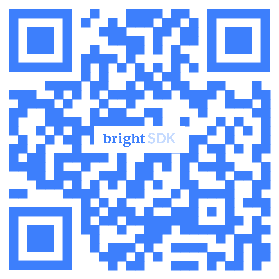
"Scan the QR Code to learn more about Bright Data policy and ethical usage". You can use your own branded QR code or hosted version, leading to this URL: https://bright-sdk.com/users#learn-more-about-bright-sdk-web-indexing
See below some examples of a possible custom consent screens:
Integration code
- You should pass `skip_consent: true` in SDK's initialization method to prevent showing the default consent screen.
- The opt-in button (e.g. "I Agree”) should call `external_opt_in()` method.
- The opt-out button (e.g. "I Disagree”) should call `opt_out()` method.
In case you show your custom consent dialog you also should call the `consent_shown` method.
Please contact Bright SDK before implementing in order to get pre-approved.