Step 1: Register your app in the dashboard
Step 2: Choose integration offer(s)
Step 2.2: Technical integration
Step 3.1: Get your app certified!
Step 3.2: Report and payment details
Overview
This guide is for developers and app owners who want to monetize their applications by offering Bright Data (in this integration guide example: Hola VPN on Windows or Mac operating system) as an additional offer within their app platforms.
Integrating the Hola VPN is the first step toward earning revenue. Once you've released your app with Hola VPN you can start earning per install!
This document provides a step-by-step walkthrough for seamlessly incorporating Bright Data products into your application.
Implementation is simple - there are 3 steps:
Step 1: Register your app in the dashboard
Step 2: Integrate Hola VPN bundle
Step 3: Final review
| ⚠️Bright Data must review your application before you start distributing your app with a bundle offer. |
Important notes
-
Users must ALWAYS decide if they want to VOLUNTARILY install Hola VPN after seeing the offer and consent screen. Additionally, users should ALWAYS have a straightforward means to opt out of the installation process.
- Take care when implementing the offer screen and the opt-out mechanisms in a way which follows guidelines in this document.
- Follow consent screen implementation guidelines in order to return true value from user interaction. DO NOT install anything on users devices if they have not opted-in.
- Bright Data products do not do any user tracking of any kind. You can read more about Hola VPN and privacy in the privacy policy.
- It’s important to follow the guidelines in this document to avoid violation of our company’s policy which may lead to termination of agreement.
Step 1: Register your app in the dashboard
If you are not registered as a partner yet, Welcome! Please go to our dashboard and signup.
You are now ready to start with registering the app bundle:
1. Click on "Monetized Bundles" (left menu) > Click on the "(+) Add Bundle" button (top of the page).
2. In the Bundle Creation pop up: Choose the Product you would like to promote, Operating System your app is offered in and the Offer Type from the drop down menu (description of each is available under the offer type box).
3. Under "URL" enter the current download link of your app for our team to review.
4. Click "Create" button.
Note: As part of our service to select partners, we include them in the respected AppEsteem certification program, recognized by major AV vendors. Once implementation is confirmed and installs look good, we’ll notify you to begin.
The process involves app review, addressing any violations, and, finally, code signing with a new certificate (handled by the app developer).
Bright SDK covers the entire certification process and maintenance—at no cost to you!
Step 2: Choose integration offer(s)
> Scenario #1 - Installation Wizard offer
Offer your users the benefits of Hola VPN by adding a screen to your install wizard.
1. Promotional offer is shown within product installation wizard (start with offer screen set up and then implement exe file, instructions here).
⚠️Make sure Hola VPN offer screen does not interrupt the user's expected flow. Ideally it should show AFTER your install wizard process is complete. Otherwise, you need to have the user's permission to view optional offers before showing it.
2. User clicks Agree
3. exe file downloads in the background
4. Hola VPN setup is launched only after your app installation is complete and presents the Bright SDK consent screen.
> Scenario #2 - Uninstall webpage offer
Earn revenue from users who choose to uninstall your product by presenting a Hola VPN install offer on your products uninstall page.
1. User uninstalls your app and is redirected to an uninstall page on your website.
2. A short message alongside an offer banner is shown. Get your dedicated custom link under "Bundle Details" on your dashboard app page and implement it onto CTA. Contact support@hola.org for further assistance.
3. exe file downloads ---> Hola VPN is installed.
4. Hola VPN is launched and presents Hola’s and Bright SDK consent screens.
Uninstall Page Implementation instructions:
- Set up the Bundle offer: Go to 'Monetized Bundles' on the left menu of the CP' > click 'Add Bundle' > a pop up will open. Choose 'Uninstall Page Offer' > Press 'Create'.
- Get your link and implement onto your webpage page CTA: On the "Bundles Details" section, make sure Offer Type shows 'Uninstall Page Offer' copy download URL to implement onto your CTA.
> Scenario #3 - Successful Install page
Earn revenue from users who successfully installed your product by presenting a Hola VPN install offer on your product's successful installation page.
1. Once your app is fully installed - direct your user to a welcome / successful install page on your website.
2. A short message alongside an offer banner is shown (like above mockup). Get your dedicated custom link under "Bundle Details" on your dashboard app page and implement onto CTA. Contact for further assistance.
3. exe file downloads ---> Hola VPN is installed.
4. Hola VPN is launched and presents Bright SDK consent screen
Successful Installation Page Implementation instructions:
- Set up the Bundle offer: Go to 'Monetized Bundles' on the left menu of the CP' > click 'Add Bundle' > a pop up will open. Choose 'Successful Installation Page Offer' > Press 'Create'.
- Get your link and implement onto your webpage CTA: On the "Bundles Details" section, make sure Offer Type shows 'Successful Installation Page Offer' copy download URL to implement onto your CTA.
> Scenario #4 - Ad Campaign
Create an ad campaign offering to install Hola VPN - get paid for every install you bring!
1. Once your app is fully installed - direct your user to a welcome / successful install page
2. A short message alongside an offer banner is shown (like above mockup). Get your dedicated custom link under "Bundle Details" on your dashboard app page and implement onto CTA. Contact support@hola.org for further assistance.
3. exe file downloads ---> Hola VPN is installed.
4. Hola VPN is launched and presents Bright SDK consent screen
Ad Campaign Implementation instructions:
- Set up the Bundle offer: Go to 'Monetized Bundles' on the left menu of the CP' > click 'Add Bundle' > a pop up will open. Choose 'Ad Campagin' > Press 'Create'.
- Get your link and implement onto your campaign: On the "Bundles Details" section, make sure Offer Type shows 'Ad Campagin', copy download URL to implement onto your campaign.
> Scenario #5 - In-App offer
Present a Hola VPN install (banner/pop up etc) within your app.
1. An offer is presented within the app screen.
2. Use clicks offer
3. exe file downloads ---> Hola VPN is installed.
4. Hola VPN is launched and presents Bright SDK consent screen
⚠️ Important! Four principles to keep in mind when presenting in-app offers:
- No means no: if the user has already explicitly declined an offer in the app or during its install, the app can’t show it again.
- Uninterrupted experience: This means the app can't present the offers in the middle of any tasks the user has initiated (i.e starting/stopping the app). You may present offers when the app is idle, or after the app completes a task and the user knows it's complete.
- User is in control: There needs to be a way in the settings to disable the offers.
- Display: To avoid detection as Adware by AVs - Show offers within the app, not as separate pop-ups.
In-App Offer Implementation instructions:
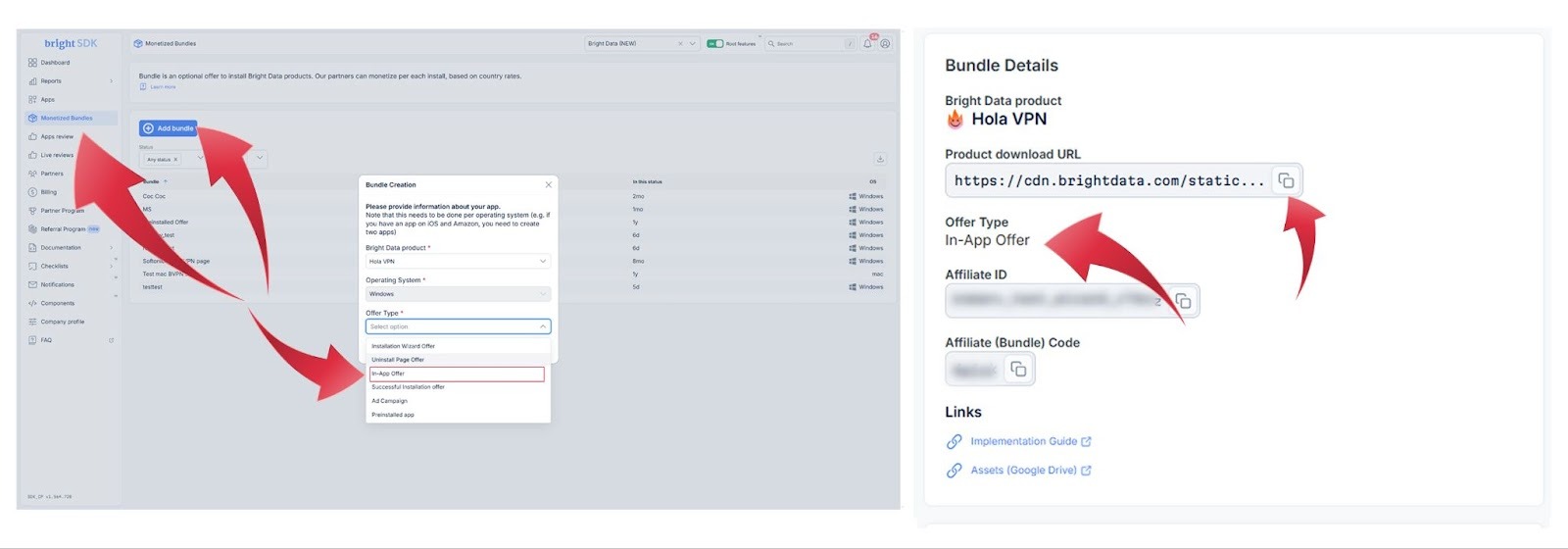
- Set up the Bundle offer: Go to 'Monetized Bundles' on the left menu of the CP' > click 'Add Bundle' > a pop up will open. Choose 'In-App Offer' > Press 'Create'.
- Get your link and implement onto your offer: On the "Bundles Details" section, make sure Offer Type shows 'In-App Offer' copy download URL to implement onto your offer.
 > Scenario # 6 - Preinstalled app
Install Hola VPN on products you distribute (refurbished Products, device manufacturers, OEM, etc):
Implementation steps for preinstall scenario:
download the following file: https://cdn4.hola.org/static/Hola-Setup-Standalone-x64-Latest.exe
proceed with one of the following options:
- install the application manually on each device buy running it with the following flags via windows CMD:
Hola-Setup-Standalone-x64-[version_number_here].exe --silent --no-run-uis --no-run-svc --affiliate [your_affilaite_id]
(affiliate id value can be found in your bundles page, each bundle configuration has unique id value)
OR:
- open a windows image in image audit mode
- run installer with the following flags via windows CMD:
Hola-Setup-Standalone-x64-[version_number_here].exe --silent --no-run-uis --no-run-svc --affiliate [your_affilaite_id]
(affiliate id value can be found in your bundles page, each bundle configuration has unique id value)
- place a shortcut to the hola app in the windows startup folder so it will get launched on startup
- install the same image on different devices
Note: in this scenario it is crucial that you don't launch the app after installing it. The end-user should be the one to launch the app for the first time.
Note 2: for preinstalled app scenario, you can disregard all other instructions that come after this section.
---
For your Installation Wizard offer setup, follow these instructions:
Step 2.1: Offer screen setup
|
⚠️ Important! Please follow the guidelines below to assure compliance with our policies. If you violate the guidelines, Bright Data reserves the right to terminate your account. ⚠️ Hola VPN launch will happen only AFTER your install wizard process is complete. |
Optional: You may design the opt-in any way you choose (we recommend the design to be as close as can be to your installation wizard). However, the Hola VPN offer screen must always include an opt-in consent screen with the mandatory text below.
- You may implement the Hola VPN offer screen onto your wizard (make sure to include all the links provided below).
[implement with your own buttons: available with buttons or without buttons (so you can use the ones in your Wizard (make sure to include all the links provided below)+ that buttons return true value from user interaction).
- In case you want to design your own Hola VPN offer, please read below.
In the 'Assets' section you may find all the imagery needed..
When setting up the offer make sure to include the following text, buttons and links:
Follow this link to access translations of the offer.
-
Mandatory Text:
Optional offer by <link to: https://holavpn.com/ >
Access worldwide content with Hola VPN!
Install Hola VPN to enjoy:
Unrestricted access the content you like
+190 locations available 24/7
Ultra-fast and stable connection
Hola VPN provides you with free VPN in return for allowing Bright SDK to occasionally use your device's free resources and IP address. When you click “Accept”, you agree to install “Hola VPN” and consent to its Privacy Policy and EULA.
-
Buttons: “Decline” / “Accept”
⚠️ Make sure buttons return true value from user interaction (“Decline” = opt-out / “Accept” = opt-in). DO NOT install anything on users devices if they have not opted-in.
- Links:
- The link to Hola VPN EULA leads to https://hola.org/legal/sla
- The link to Hola VPN Privacy Policy leads to https://hola.org/legal/privacy
- The link to Bright Data leads to http://brightdata.com
AV Guidelines
As mentioned above, it is vital to us to keep all of our partners’ apps certified and cleared from any Anti Virus detection. Based on our experience, and partnership with Appesteem, we will provide some consulting about the implemented flow, to avoid any AV detection. For more details, we recommend you visit this page, and filter the list for “In-bundle offers”, “Bundler-made offers” and “Ads inside apps”. These guidelines were not written specifically for any of Bright Data’s applications, and are relevant for any bundler.
Assets
Press Kit: Download the press kit
|
⚠️Important Note before integrating: Do to local restrictions, Hola VPN should not be offered in the following countries and/or regions, please make sure you disable the offer for:
|
Step 2.2: Technical integration
1. Dynamically download the app using the link that is present in your bundle page in bright-sdk control panel
The downloaded file will have the following filename format:
Hola-Setup-csa-aid-[AFFILIATE_CODE].exe
example: Hola-Setup-csa-aid-s58kz.exe
⚠️ Important: keep the original name of the file as it is downloaded, the name contains your affiliate code that binds future installations to your account.
2. Save the user's choice when the offer is displayed.
3. Once your installer has finished. If the user clicked "I agree" on the offer screen, run the app executable.
Step 3: Send for final review
|
⚠️ Important! To get paid for installs you must: - Send your app for review and get approved (details below) |
Once you are done implementing, please upload your exe file for review under the "Review Submission" Section in your dashboard app page:
Note: each offer type (Wizard, successful / uninstall page, in-app etc) requires separate dashboard setup and review.
We will review the flow, send you feedback and add the right entities in our system and set it to “active” status in order to provide the right stats to start paying you for Hola VPN installs.
Payments are done automatically according the system's data - if you find any discrepancies, please let us know.
Step 3.1: Get your app certified!
- We will assess the number of installations in the course of a two-week period and initiate the Appesteem certification process, for which we will cover the associated costs. Click here to see the list of our partners’ apps that have been certified.
- As part of this process, it is necessary to implement a new signing certificate (this part is under the partner’s responsibility).
Note: when you add an offer (Wizard, successful / uninstall page, in-app offer etc), most likely you have a new build version. In that case, please share so we can recertify with Appesteem.
- If you have any inquiries, please feel free to contact our Director of Security Partnerships.
Step 3.2: Report and payment details
- We invite you to check into Bright SDK dashboard, where you can manage your partnership activity, monitor your revenue and have access to other partner program assets.
- In our dashboard, update your billing contact and payment details, under “company profile”. Learn more about our billing process.
- Our team will notify you once they complete their review and approve your integration - you may then start distributing this build and start monetizing with Hola VPN!
- Once active, you will be receiving a monthly report in CSV format along the total of the payment for this month.